Once in a while you might have to create a UFT API test that needs some user input at runtime. Ideally this should be rare, since normally the whole point of automating most tests is to be able to run them overnight unattended.
But, as I’ve mentioned in the past, sometimes even just automating something halfway to save someone lots of times might make sense. In these instances you need a way to capture a user’s input at runtime. One option is to create a popup input dialog to accept user data.
Let’s take a look at a quick example.
How to create a InputBox in UFT API
- Create a new UFT API test named UserInput
- Under Toolbox, drag a Miscellaneous>Custom Code method onto the main canvas area.
- From the UFT menu click on the Solution Explorer icon
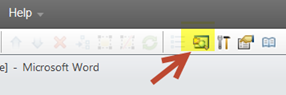
-
Right click on the References options from the Solution Explorer and select Add Reference…
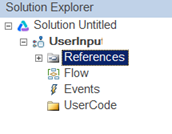
-
Under the Add References Dialog select the GAC tab
-
Find and click on the reference named Microsoft.VisualBasic
-
Click the Select button
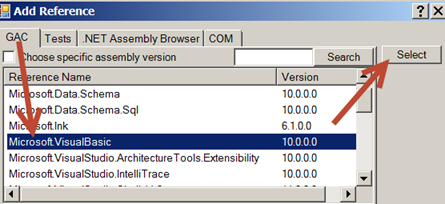
- Under the Custom Code’s Properties>Events (lightning bold icon) section, select the Create a default handler from the ExecuteEvent handler dropdown field.
- This will bring up the code editor for UFT API. (Tip: Before writing any code make sure to save the test first, because there’s a known issue with the auto completion drop down in UFT API’s user event code; it often does not reflect changes on the canvas until you perform a Save operation.)
- Place your cursor into the public void CodeActivity#_OnExecuteEvent method and type the following code:
String yourName;
yourName = Microsoft.VisualBasic.Interaction.InputBox("Enter Your Name","Name","JOE",-1,-1);
The Input method expects the following info:
(string Prompt, string Title,string DefaultReponse,int XPos, int yPos)
- Save and run the UserInput test – you should see a Name input dialog appear. Cool!
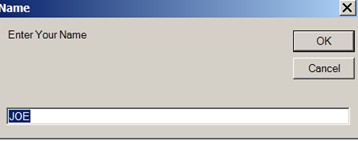
Now What?
There are a few ways you can now work with the user’s input value. One way is to create an output value for the Custom Code activity and assign it the input value.
To learn how to do this checkout my Simple Custom Code Example in my wicked affordable book the UFT API Test Manifesto
More UFT API Automation Awesomeness

For more UFT API Automation Awesomeness, tips, tricks and more, check out my new book, The UFT API Testing Manifesto – A step-by-step, hands-on testing guide for the masses, available on Amazon.com!
Don’t own a Kindle? No Problem — you can still read my UFT API book!
I’m aware that some of you have had trouble accessing my books in the past. The truth is that you don’t need a Kindle! There are a variety of free ways you can read a Kindle eBook:
-
Read it on your PC or Mac (Kindle Cloud Reader)
-
Read it on your iPhone or iPad (iTunes App)
-
Read it on your Android (Kindle for Android)
-
Read it on your Blackberry (Kindle for Blackberry)
In short, it’s really simple to read Amazon Kindle books, no matter what type of device you use to access the Internet.