Getting Started with LoadRunner, Eclipse and Selenium
Before you begin, save yourself some time and make sure that you’re using the 32bit version of Eclipse
- . I actually had an issue getting this to work at first, and had to open a ticket with HP support. The resolution was changing to 32bit Eclipse, after which everything worked fine.
Also — you need LoadRunner 12, but the good news is that LoadRunner 12 is now free to use for up to 50 concurrent users. So go ahead and download and follow along – it’s free.
Install the LoadRunner Eclipse Add-in
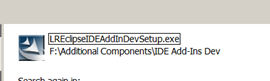
- First, run the LREclipseIDEAddinDevSetup.exe from the LR install under Additional ComponentsIDE Add-Ins DEV
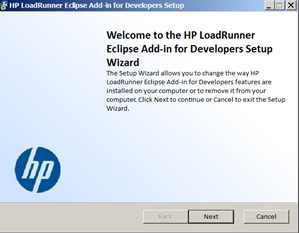
- The HP LoadRunner Eclipse Add-in for Developers Setup should appear. Click Next.
- Point to the location where you have the eclipse.exe located.
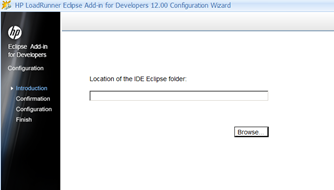
- Take the rest of the defaults.
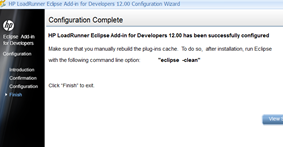
- Once the wizard is completed, run the eclipse-clean option from either the command line or by adding the –clean in the target clause (I find this way easier).
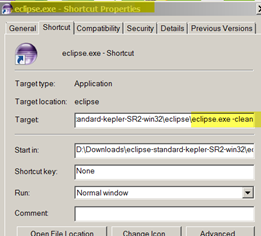
- Using the –clean parameter will force Eclipse to rebuild your plugin cache.
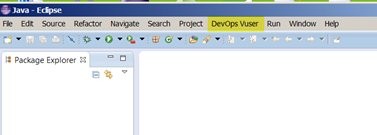
- Once Eclipse starts up you should have a new menu option named DevOps Vuser
Create a Selenium test in LoadRunner
Cool! Now that we have everything configured, let’s create a simple selenium script and add some LoadRunner transactions to it. I’ll assume that you already have a project that includes the Java Selenium language bindings. (If not, you can get step-by-step instructions on how to do this by following my previous post Selenium 2.0 WebDriver – How to Get Started with Eclipse.)
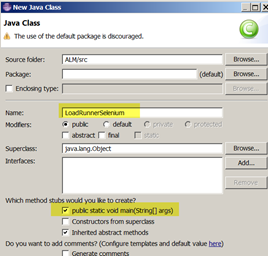
- In your Eclipse project, create a New Java Class named LoadRunnerSelenium. Be sure to select the public static void main checkbox option.
- Add the following imports:
import org.openqa.selenium.WebDriver;
import org.openqa.selenium.firefox.FirefoxDriver;
import org.junit.Assert;
- Add the following code under your void main:
WebDriver driver = new FirefoxDriver();
driver.get("http://www.google.com");

Assert.assertEquals("Google", driver.getTitle());
driver.quit();
- Run the test and make sure it passes
Adding LoadRunner Transactions to Selenium Script
Now let’s add some LoadRunner transactions. A LoadRunner transaction is a step added to a script that measures one or more actions. Without transactions, LR would not be able to take measurements.
For our script we will be using the Start and End transaction steps. These transactions are used to measure the duration of a particular flow or event. In our example it will measure the amount of time it takes for the Google homepage to load.
- In Eclipse, under DevOps Vuser, select the Add LoadRunner API Reference to Project option.
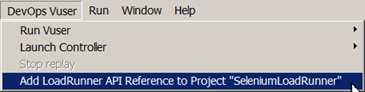
- You should now have the import statement at the top of your script. (If you don’t, just type it in.)
import lrapi.lr;
- Add an lr.start_transaction(“Google_Search_Page”) right before our assert statement.
- Add an lr.end_transaction(“Google_Search_Page”, lr.PASS); make sure the transaction names are exactly the same.
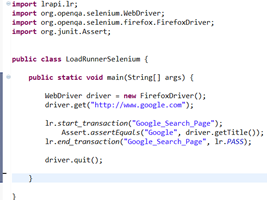
- After the end transaction, add driver.quit();
- From the Devops Vuser menu, select Run Vuser
- The test should now run without issues.
Run the Selenium test from LoadRunner Controller
Now that we have our script, we can create a performance test scenario to run within the LoadRunner controller. The HP LR Controller is used to organize and manage scenarios. It is basically our performance test dashboard. In the controller is where we can specify our scripts and how many concurrent users to run. It also allows us to display the execution status of each Vuser and monitor performance resources.
In Eclipse, select the DevOps Vuser>Launch Controller option:

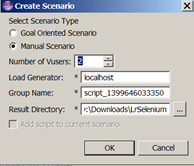
- In the Create Scenario dialog, enter:
- Select Manual Scenario
- Number of Vusers 2
Result Directory: I have mine in D:DownloadLrSelenium
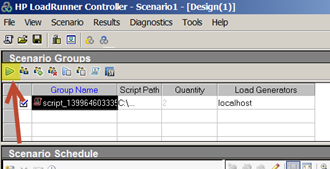
- In the HP LoadRunner Controller, click on Run (the default run time is 5 minutes).
The test scenario should run for the specified time, and you’ll also be able to see how long the avg time for the Google_Search_Page was.
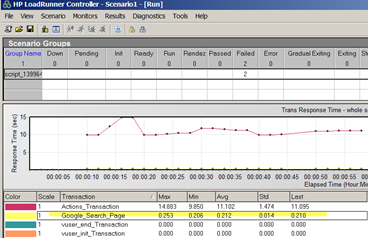
We don’t have time today to go into all the different settings you can set in the controller, but you should now have the knowledge needed to create some basic Selenium scripts and run them in LoadRunner.