Did you know that HP purposely hides certain functions available in QTP and UFT? Today we take a look at four of the most popular undocumented features that can be found in both QuickTest Professional and Unified Functional Testing.
The Four Hidden QTP/UFT Features:
- Highlight
- TestArgs
- Mercury.DeviceReplay
-
Reporter Methods
QTP/UFT’s Highlight Function
The Highlight function allows you to programmatically highlight an object in your test script. This functionality is identical to what can be seen in the object spy when you click on the highlight in application option.
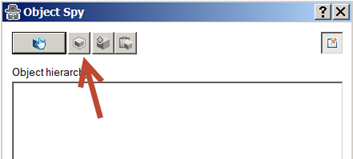
The undocumented feature is that this can also be done programmatically.
To see this example in action:
- Create a new script.
- Navigate to https://testguild.com
-
Add the following line of code in your script:
Browser(“index:=0”).Page(“index:=0”).WebEdit(“name:=MERGE0”).highlight
- Run the test and you should see the Enter your email here field flicker. Highlight it a few times.
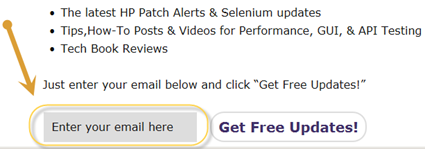
I personally find this method helpful when debugging my running scripts and also to keep track of what field it might be on before a failure.
QTP/UFT’s TestArgs Function
Did you know that you can access your test parameters at run time or programmatically? Just looking at the QTP/UFT documentation you would think not, but it is, in fact, possible to read, get, write and set parameter values at run time and programmatically.
Let’s check this out using the Read option:
- In the canvas, select the Start step.
- In the Properties pane, open the Parameters tab.
- Click the Add button and select Add Input
Parameter.
-
In the Add Input Parameter dialog box, enter the following:
- Name = WhatsYourName
- Type = String
- Default Value = Jimi
- Name = WhatsYourName
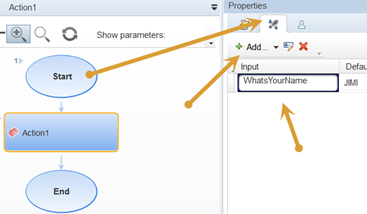
- Click on Action1 and create the same exact Input property and Value.
- Next, add the following code to your action:
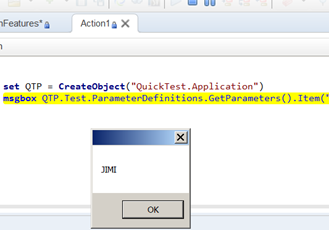
set QTP = CreateObject(“QuickTest.Application”)
msgbox QTP.Test.ParameterDefinitions.GetParameters().Item(“WhatsYourName”).Value
- Run your test and a message box should appear with the value JIMI.
QTP/UFT’s Mercury.DeviceReplay Function
The Device Replay feature can be used to perform mouse and keyboard actions against screen coordinates that you provide. To access these undocumented functions, you need to programmatically enter them in the Expert View.
I actually covered this functionality in my previous post, Three ways to use keyboard input using QTP/UFT.
QTP/UFT’s Reporter Functions
This secret method allows you to create custom HTML to your QuickTest and Unified Functional Testing reports. This functionality was common in earlier versions of QTP, but in QTP 11 and above these built-in methods were removed. The bravest of us, however, can still use them even though they are “unsupported” now.
Here is one way to create custom HTML in your reports. This example will embed a link to a website in the report, but you can use this for HTML-like tables, etc.
- Enter the following code in the Expert View of your tests:
Set oEventDesc = CreateObject(“Scripting.Dictionary”)
oEventDesc(“ViewType”) = “Sell.Explorer.2”
oEventDesc(“Status”) = micPass
oEventDesc(“EnableFilter”) = False
oEventDesc(“NodeName”) = “My Blog”
oEventDesc(“StepHtmlInfo”) = “<a href=’http://www.testtalks.com’>TestTalks</a>”
newEventContext = Reporter.LogEvent (“Replay”,oEventDesc,Reporter.GetContext)
- Run your test and look at the HP Run Results Viewer.
- You should see a TestTalks link under your Result Details section.
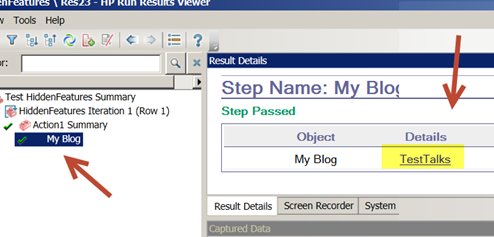
Clicking on the TestTalks link should bring up my podcast in the report! 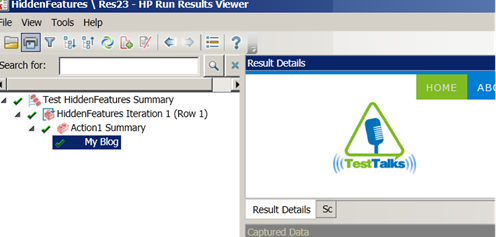
Cool, right?