I recently received the following email:
“I have gone through your video on How to run a Selenium Web driver test case with Sauce Labs but it was for Java. Can you please show [us] how to do the same using the Selenium C# .NET binding?” So today I’m going to show you how to run a C# Selenium script in Sauce labs.
For those of you that aren’t aware, Sauce Labs is the exclusive sponsor of my TestTalks podcast. Accordingly, I have a special code you can use to get 20 hours of free automation! Check out my SauceLabs page for more info.
Getting Started with Sauce Labs C Sharp
- First, log on to SauceLabs with your free account. (Check out my video on how to use my special SauceLabs promo offer.)
- https://saucelabs.com/login
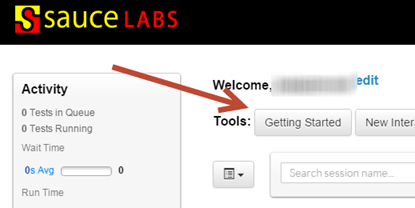
- Under the Tools section, select the Getting Started button.
-
You’ll be presented with three options:
- Automated
- Mobile
- Manual
- Automated
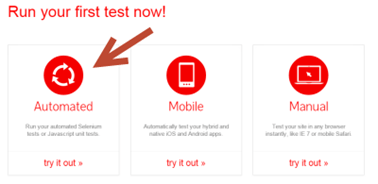
- Select Automated
Now, all you need to do is follow this quick, four-step process:
Choose your language
- For this example, I’ll be using C#.NET, but Sauce Labs supports all the Selenium language bindings.
- Select the C#.NET option.
Setup Your Project
Open up a new project in Visual Studio.
- In the New Project screen, select a C# Class Library template.
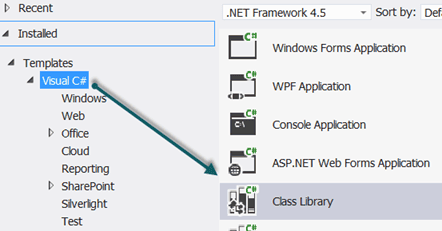
- Name the project ExampleSauce and click OK.
- From the VST menu, choose Tools>Library Package Manager> Manage Nuget Package for Solution.
- In the Manage NuGet Packages screen, enter Selenium in the Search packages field.
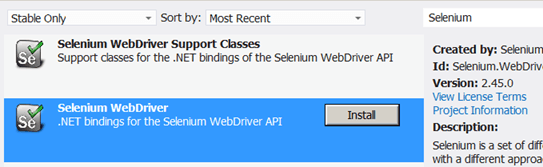
- Click on the Install button for the Selenium WebDriver. Once it’s installed, do the same for Selenium WebDriver Support Classes.
- Next, search for Gallio and install Gallio & MbUnit.

- And Gallio Bundle
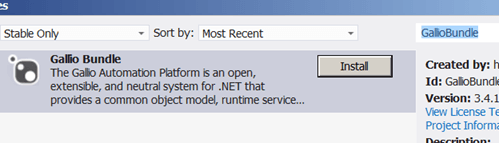
- Click Close in the Manage NuGet Packages window.
Start writing the C# tests
At the top under the using statements, add:
using Gallio.Framework;

using Gallio.Model;

using MbUnit.Framework;

using OpenQA.Selenium;

using OpenQA.Selenium.Remote;

using OpenQA.Selenium.Support.UI;
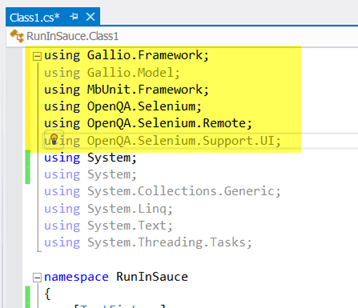
- In the RunInSauce project right before Class1, add the following:
[TestFixture]

[Header("browser", "version", "platform")]

[Row("chrome", "42", "Windows 7")]

[Row("chrome", "35", "linux")]
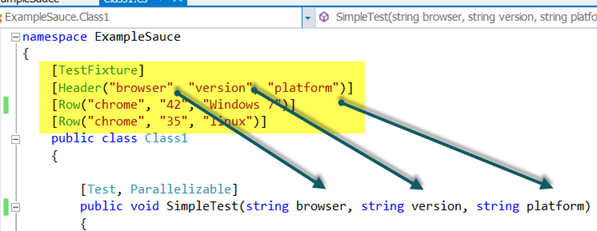
- Under the Class1 section, let’s add a method named SimpleTest and our test code. (This is for demonstration purposes only — there are better ways of doing this.)
[Test, Parallelizable]
public void SimpleTest(string browser, string version, string platform)
{
Uri commandExecutorUri = new Uri("http://ondemand.saucelabs.com/wd/hub");
DesiredCapabilities desiredCapabilites = new DesiredCapabilities(browser, version, Platform.CurrentPlatform);
desiredCapabilites.SetCapability("platform", platform);
desiredCapabilites.SetCapability("username", "yourseleniumusername");
desiredCapabilites.SetCapability("accessKey", "yourseleniumaccesskey");
desiredCapabilites.SetCapability("name", TestContext.CurrentContext.Test.Name);
var _Driver = new RemoteWebDriver(commandExecutorUri, desiredCapabilites);
_Driver.Manage().Timeouts().ImplicitlyWait(TimeSpan.FromSeconds(30));
// navigate to the page under test
_Driver.Navigate().GoToUrl("https://testguild.com/SeleniumTestPage.html");
// verify the page title is correct
Assert.Contains(_Driver.Title, "Selenium WebDriver Validation");
_Driver.Quit();
}
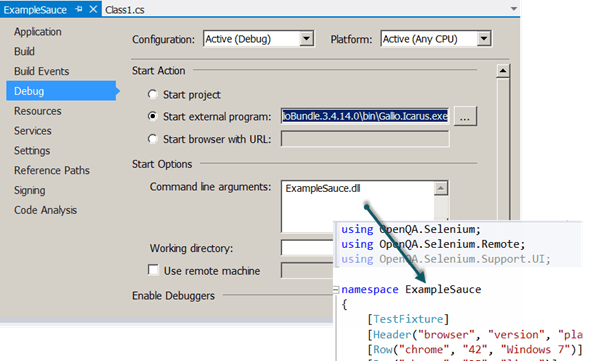
- Right click on the ExampleSauce project and select Properties.
- Click on Debug.
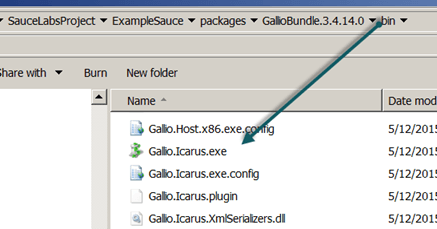
- Click on Start external program and navigate to Gallio.Icarus.exe in your VST projects packages>GallioBundle.3.4.14.0>bin directory. Mine was in:
-
Under the Command line arguments, enter the name of your namespace.dll
-
Click on F5 to build and debug the solution.
-
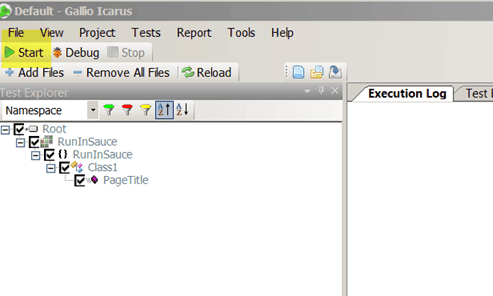
The Gallio Icarus runner will appear where you can run your tests.
-
Click on the Start button.
-
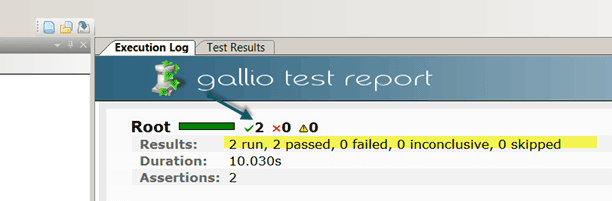
Your test should run and pass. You can tell by looking in the Gallio Test Report Execution Log tab:
-
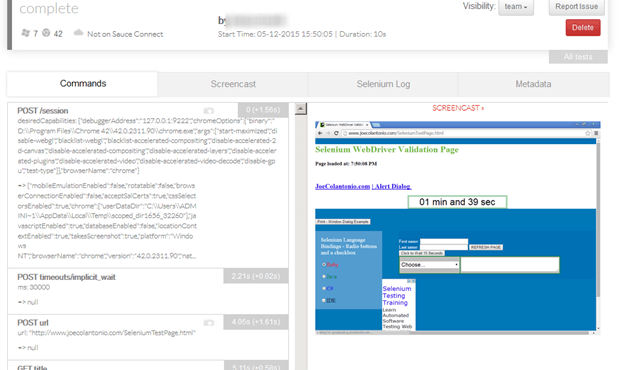
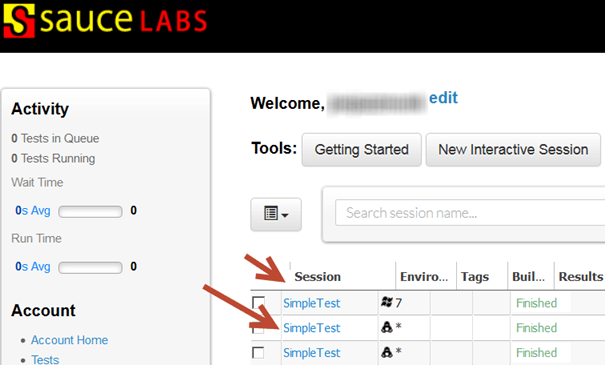
You should also see the results when you login to Sauce Labs.
-
Clicking on each Session will bring up each individual run’s execution results, where you can see step-by-step results and timings as well as video playback.